How to Handle Your Comment Replies with Vardast
Managing comments manually can be overwhelming as your page grows. Vardast allows you to automate these interactions, saving you time while strengthening your Instagram strategy by engaging users the moment they join the conversation.
1. Setting Up Your Comment Automation
Step-by-Step Configuration
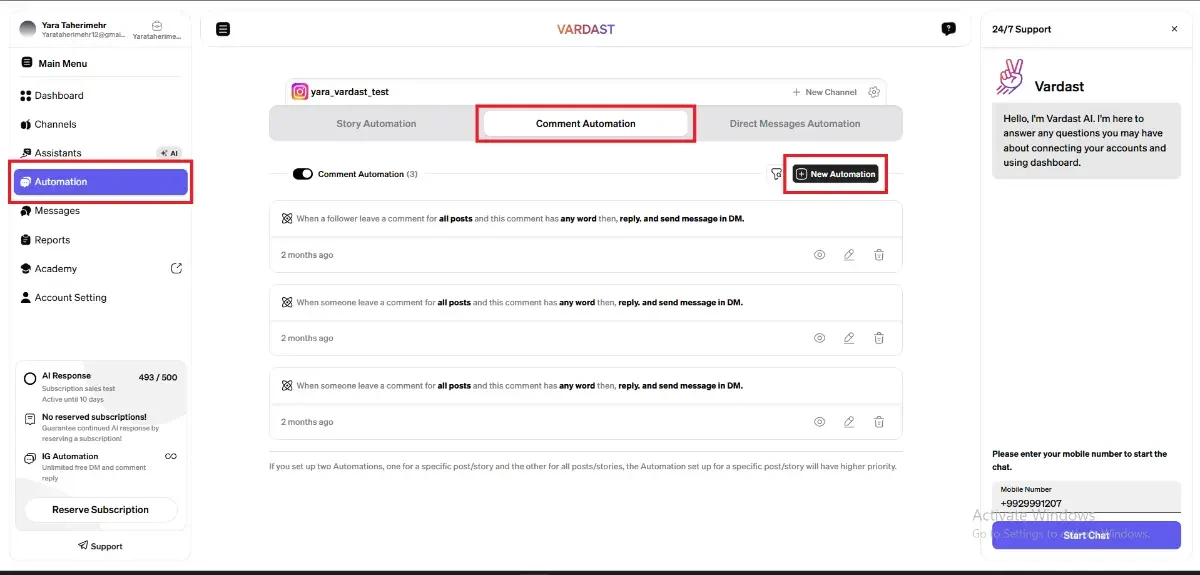
- Access the Dashboard: Navigate to the Automation tab and select the Comment Reply sub-tab. Ensure the correct Instagram channel is selected.
- Initialize: Click the + New Automation button to begin building your workflow. From here, you can customize the automation to match your specific needs.
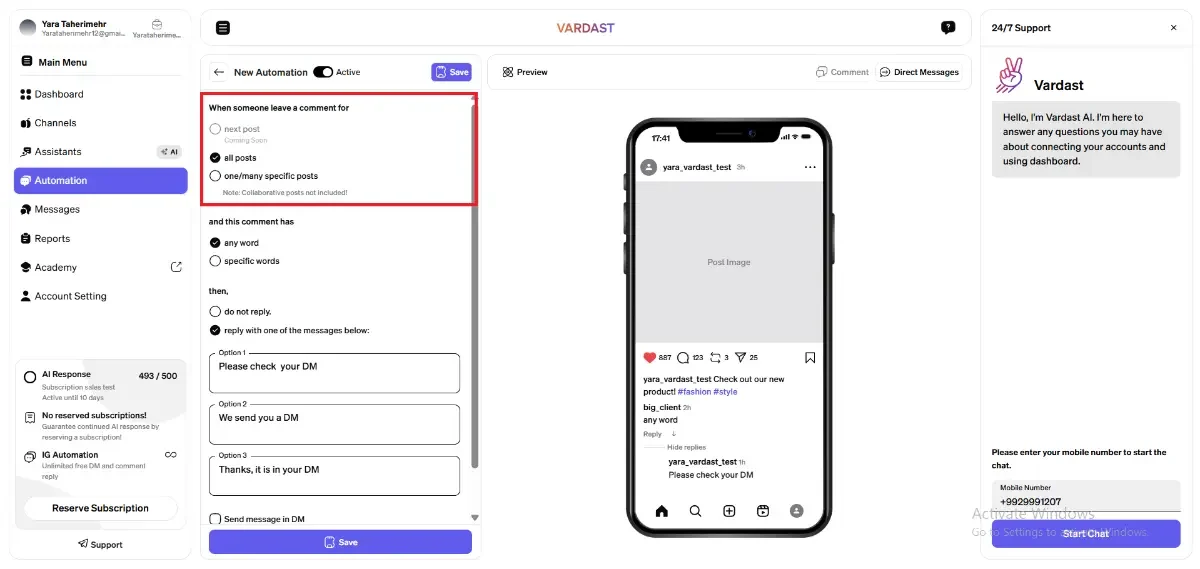
- Select Your Trigger Source: Choose which content will activate the automation:
- A Specific Post or Reel: Only comments under the selected post will trigger the flow.
- Any Post or Reel: Every comment across your entire profile will trigger the automation.
- Next Post or Reel (Coming Soon): The automation will apply to the very next piece of content you publish.
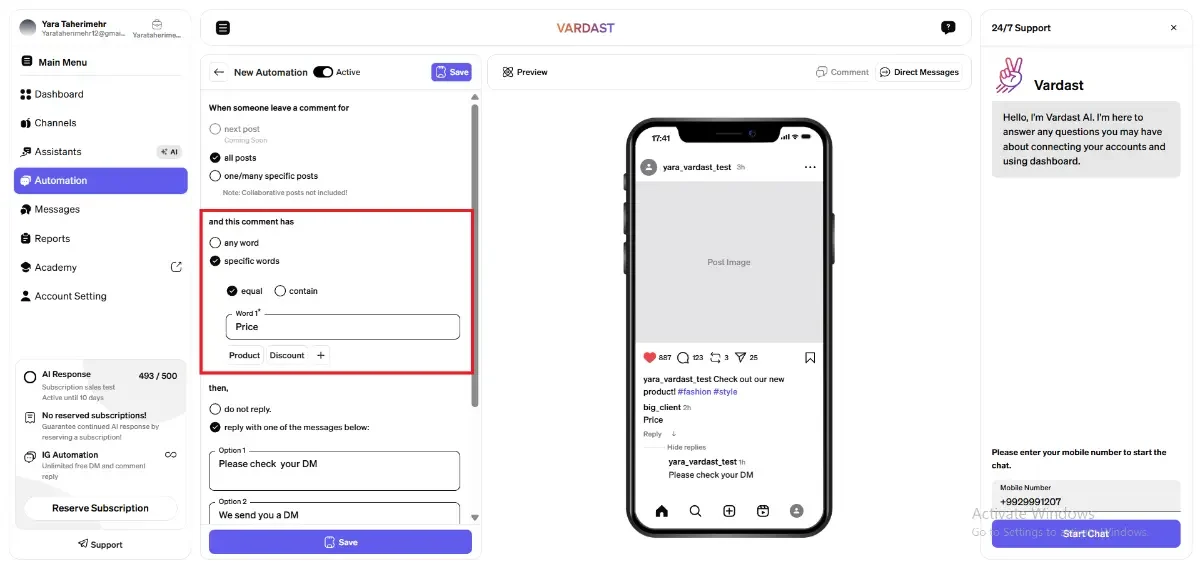
- Define Trigger Keywords: Decide which words or phrases a comment must include to trigger the response. You can enter multiple variations by clicking the + icon, or leave it blank to allow the automation to run for Any Comment.
- Matching Logic: When using specific keywords, you can define how the system reads them:
- Exact Match: The automation triggers only if the comment is exactly the same as your keyword.
- Contains: The automation triggers if your keyword appears anywhere within the user's comment.
2. Configuring the Response
Vardast allows you to respond in two ways: publicly in the comment section and privately via Direct Message (DM).
Public Comment Replies
You can choose how you appear in the comment section:
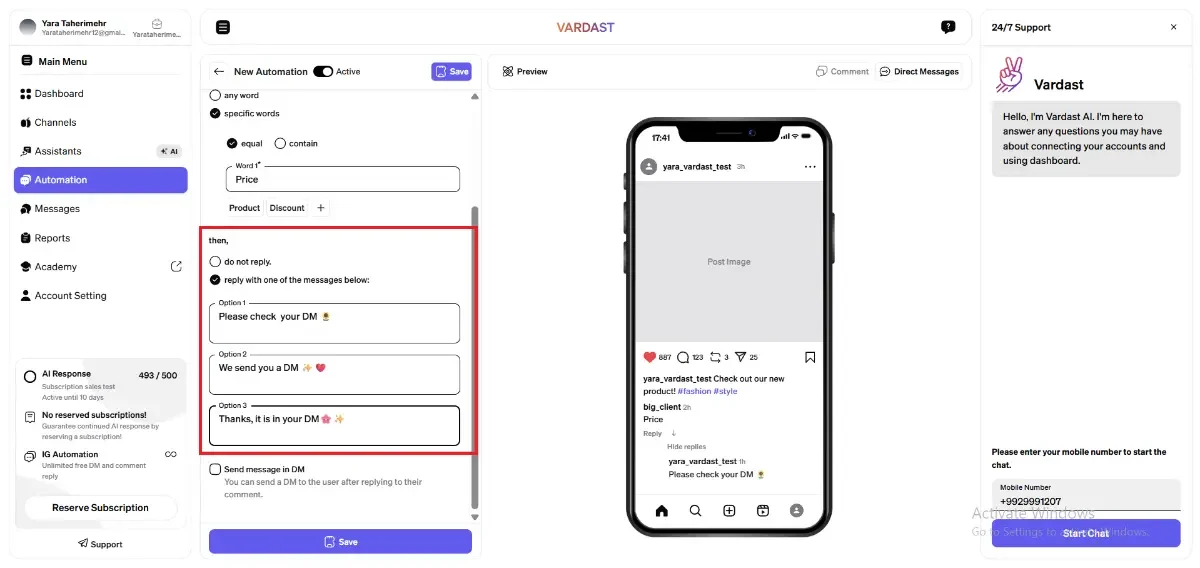
- No Answer: Vardast will not leave a public reply.
- Randomized Replies: Write up to 3 different answers. Vardast will rotate these to keep your comment section looking natural and varied.
Direct Message (DM) Responses
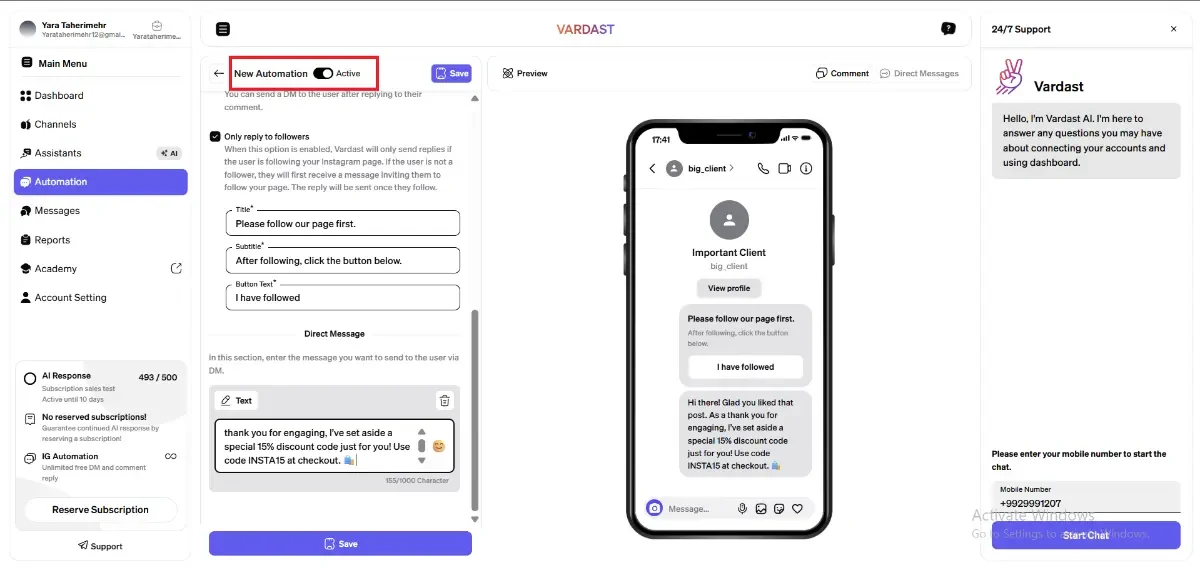
Toggle the Send message in Direct option to engage users privately after they comment. Think of this as an opening "Hey!" to start a deeper conversation.
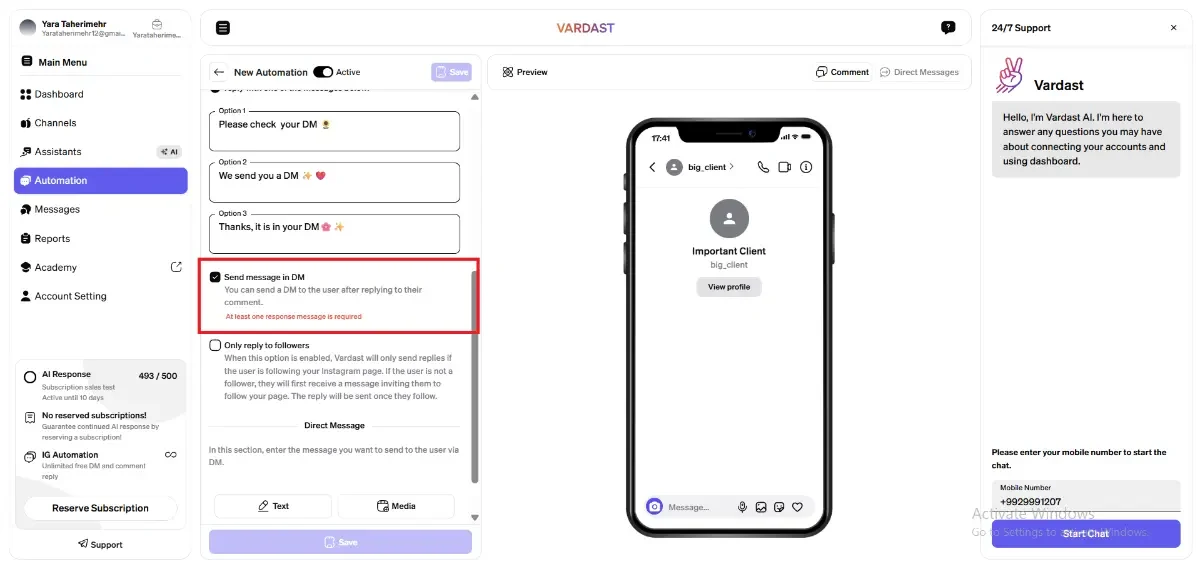
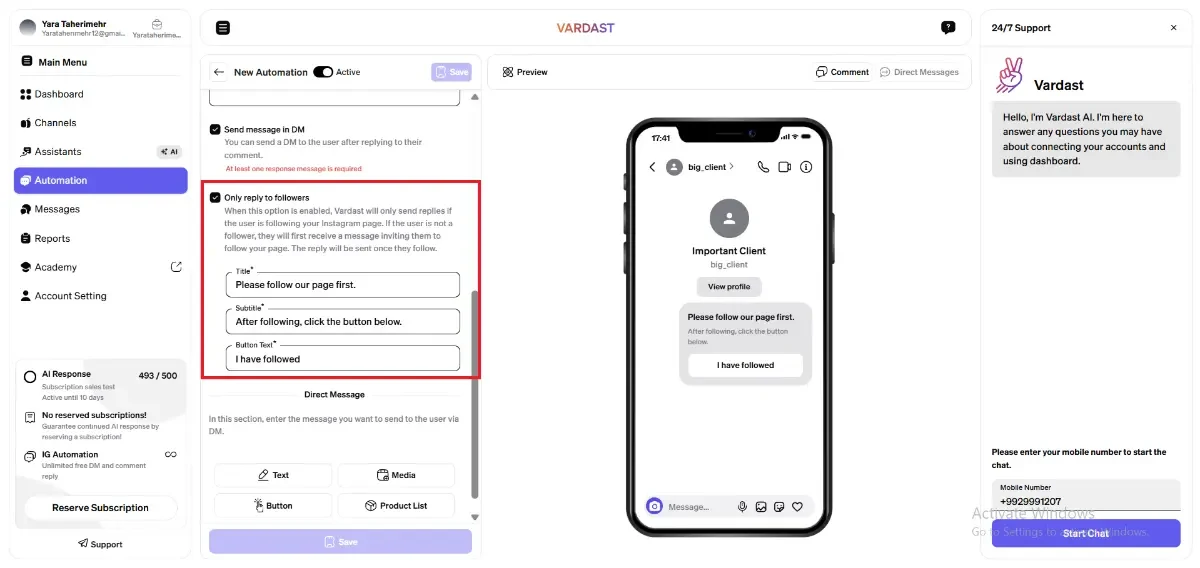
The Follower Condition: If enabled, Vardast checks if the user follows your account. If they do not, they will receive a message asking them to Follow you before they can receive your main content. This is a powerful way to convert commenters into loyal followers.
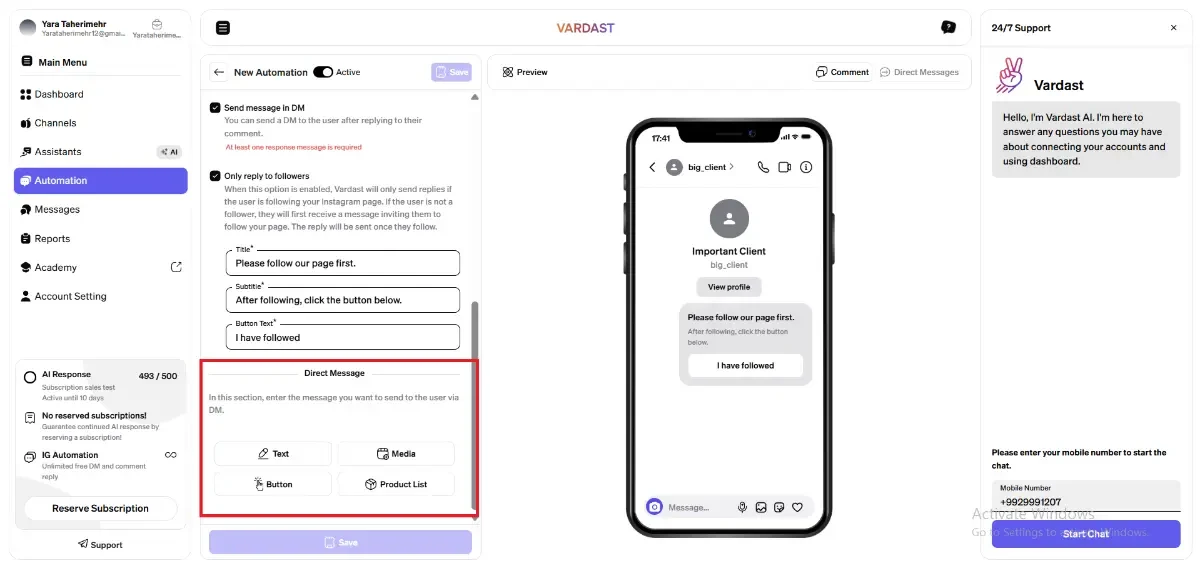
Setting Up Your DM Content: In the Comment Automation section, you can configure one specific message to be sent (unlike the multi-step flows in Story and Direct Automations). You can include:
- Text: Send a direct greeting or the specific information requested by the user.
- Media: You can attach various files to your message to make it more engaging. This includes: image, voice and video files.
- Buttons: Create up to three interactive options to segment user interest.
- Product Vitrine: Showcase specific items from your catalog with images and prices.
Once your setup is complete, click save to activate the automation.
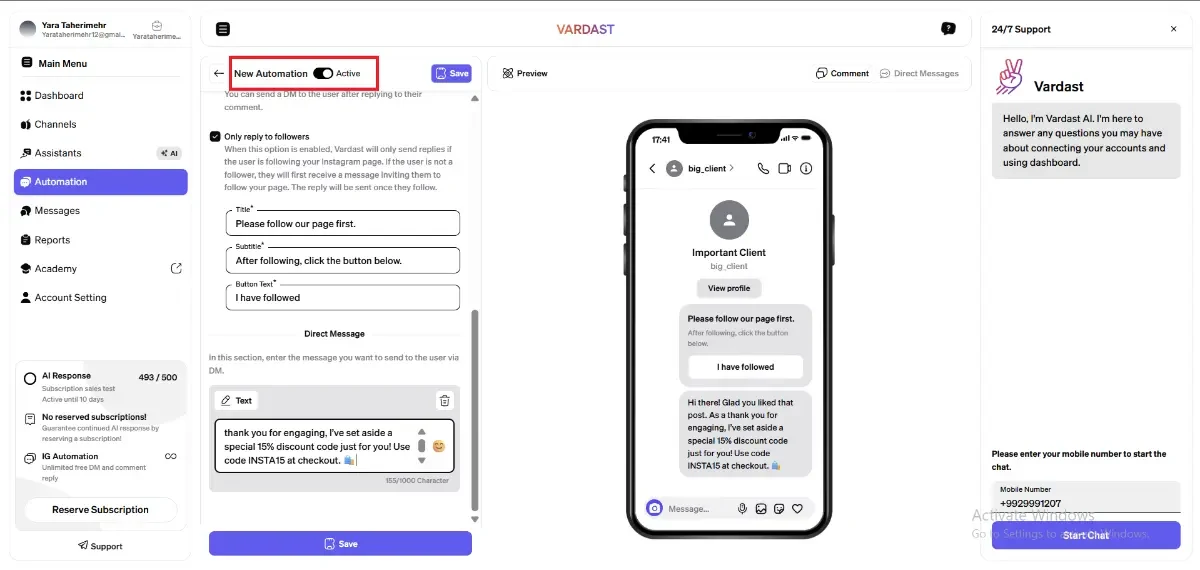
On/Off Toggle: Use the switch in the upper corner to instantly pause your automation. When you're ready to start again, simply toggle it back on to resume your settings exactly where you left them.
Comment Automation Priority
If you have multiple active triggers for Instagram comment replies, the following rules apply:
- Keyword Matches: If your triggers use specific keywords, each keyword will activate its own respective flow.
- General Triggers (No Keywords): If multiple triggers are set for "all posts or reels" without keywords, the oldest trigger (the one created first) will always take priority.
- Post-Specific Priority: An automation set for a specific post will always take higher priority over one set for "all posts".
3. Managing and Monitoring Your Flows
Control Icons
At the bottom of each automation card, you will find these essential tools:
- Eye Icon (Preview): View exactly how the message looks in a Direct Message.
- Pencil Icon (Edit): Update your triggers or change your content blocks.
- Trash Icon (Delete): Remove the automation entirely.
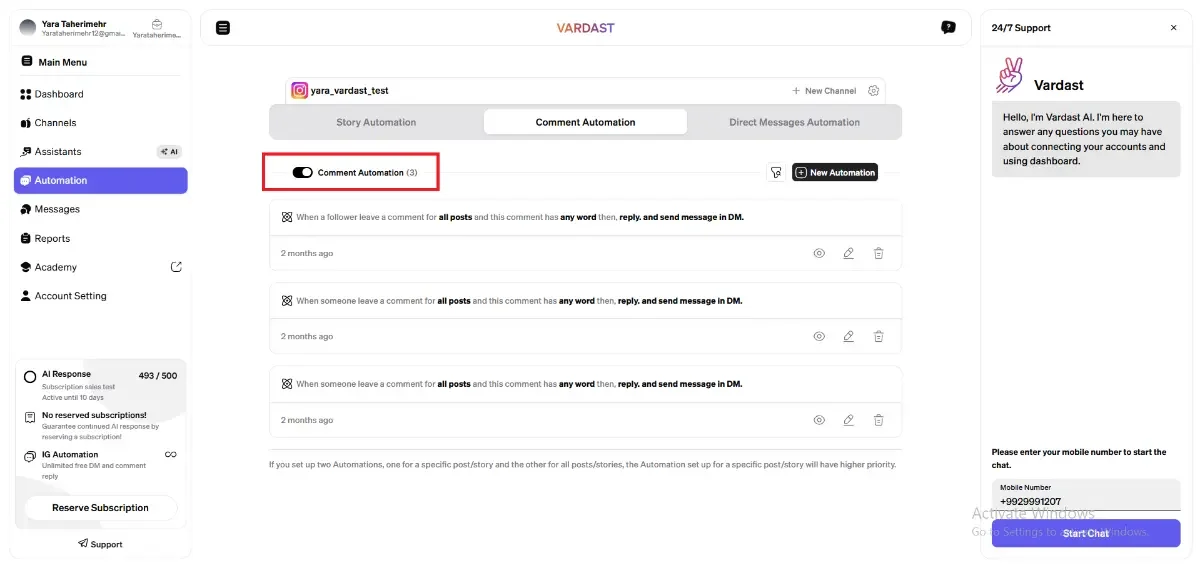
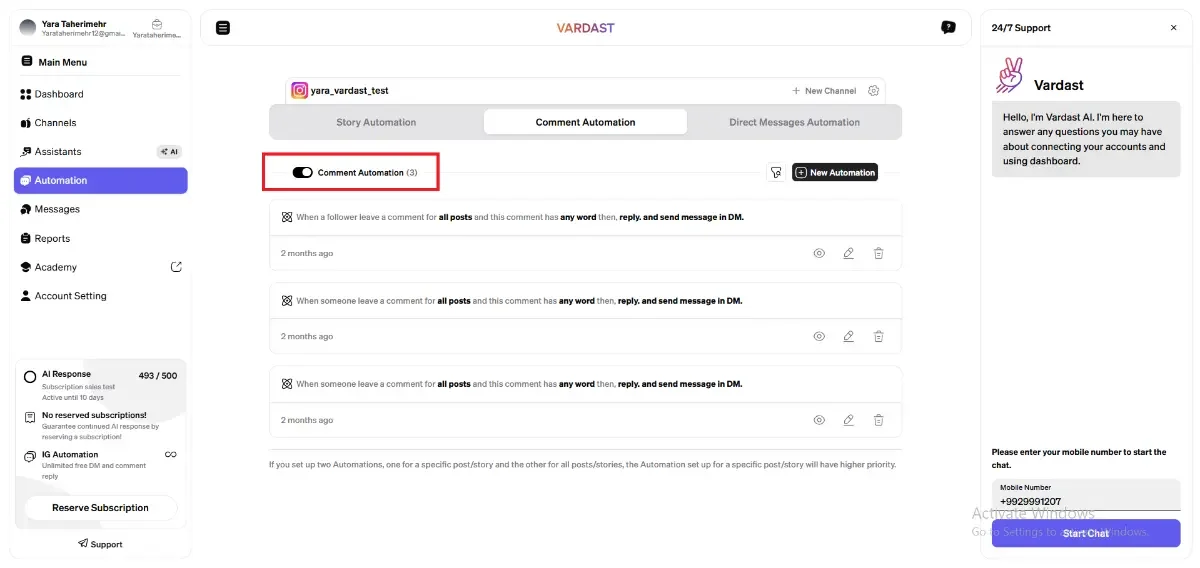
- On/Off Toggle: If you need to stop your automation entirely, turn off the "Comment Automation" toggle. To reactivate them later, simply switch the toggle back on to resume your settings.
 Collaborative, Remix, and Boosted Posts
The automation operates based on the original poster’s account. Because of this, Vardast will work correctly as long as you are the primary creator of the post. However, the automation does not function as intended if you are only a collaborator on a collaborative post, or if you are trying to automate replies on a remix post that you do not originally own.